Canon printers are among the most reliable office machines available — but even the best equipment encounters issues. When your Canon printer stops working, knowing how to diagnose the problem quickly can save hours of downtime. This guide walks you through the most common Canon printer problems in UAE offices, how to identify them, and what to do.
Most Common Canon Printer Problems in UAE Offices
1. Paper Jams
Paper jams are the most frequent issue across all Canon models. In the UAE's climate, low humidity can create static in paper stacks, increasing jam frequency.
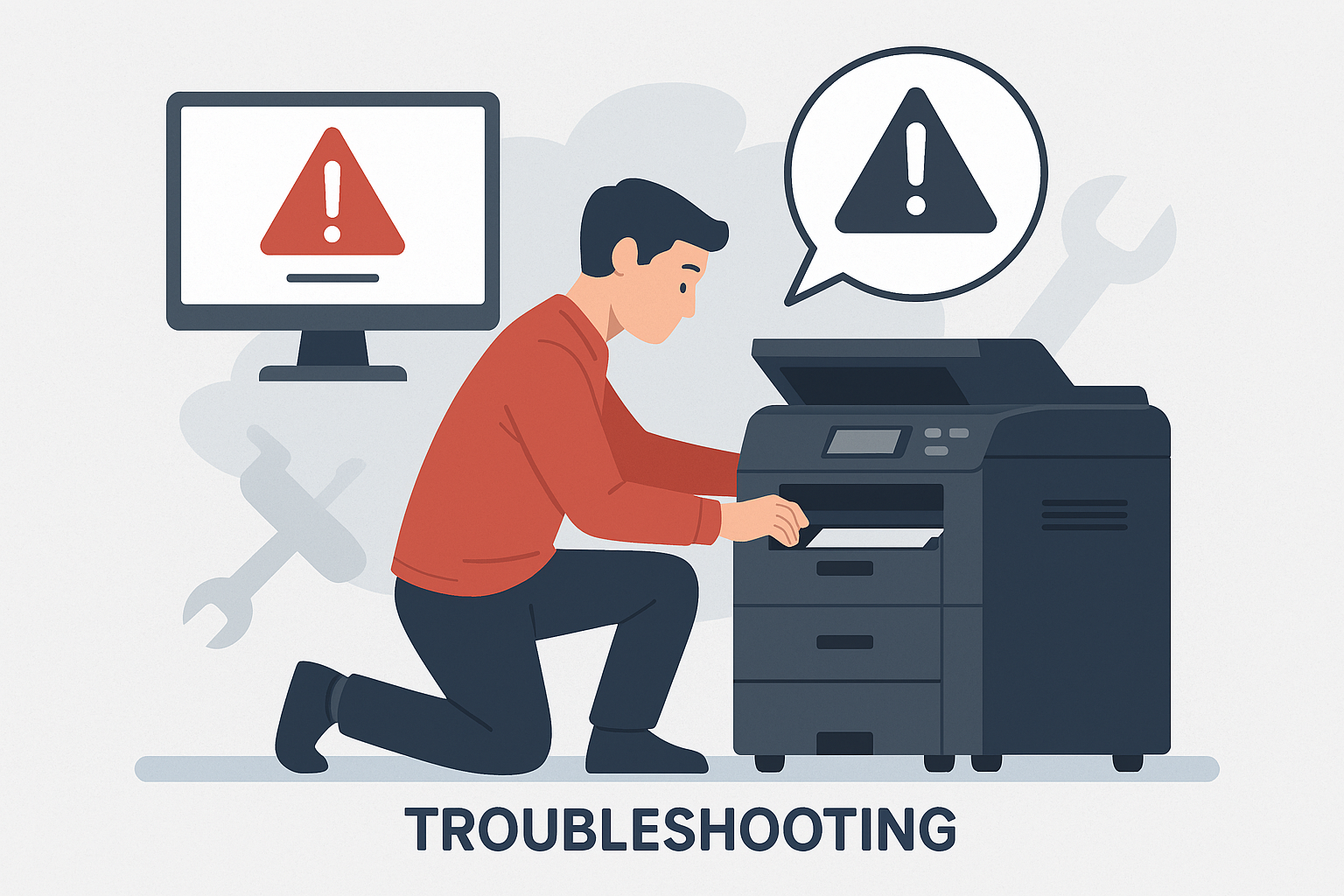
How to clear a Canon paper jam:
- Turn off the machine using the power button — do not simply open the cover while the machine is running
- Open the front and/or rear cover as indicated by the error message on the display
- Gently pull the jammed paper in the direction of the paper path — never against it
- Check for small torn pieces — a tiny fragment of paper left behind will trigger the jam error again
- Close all covers securely, wait 10 seconds, then power the machine back on
Prevention: Fan paper before loading to separate sheets. Store paper in sealed reams away from air conditioning vents, which dry paper excessively.
2. "Check Ink / Toner" Error When Toner is New
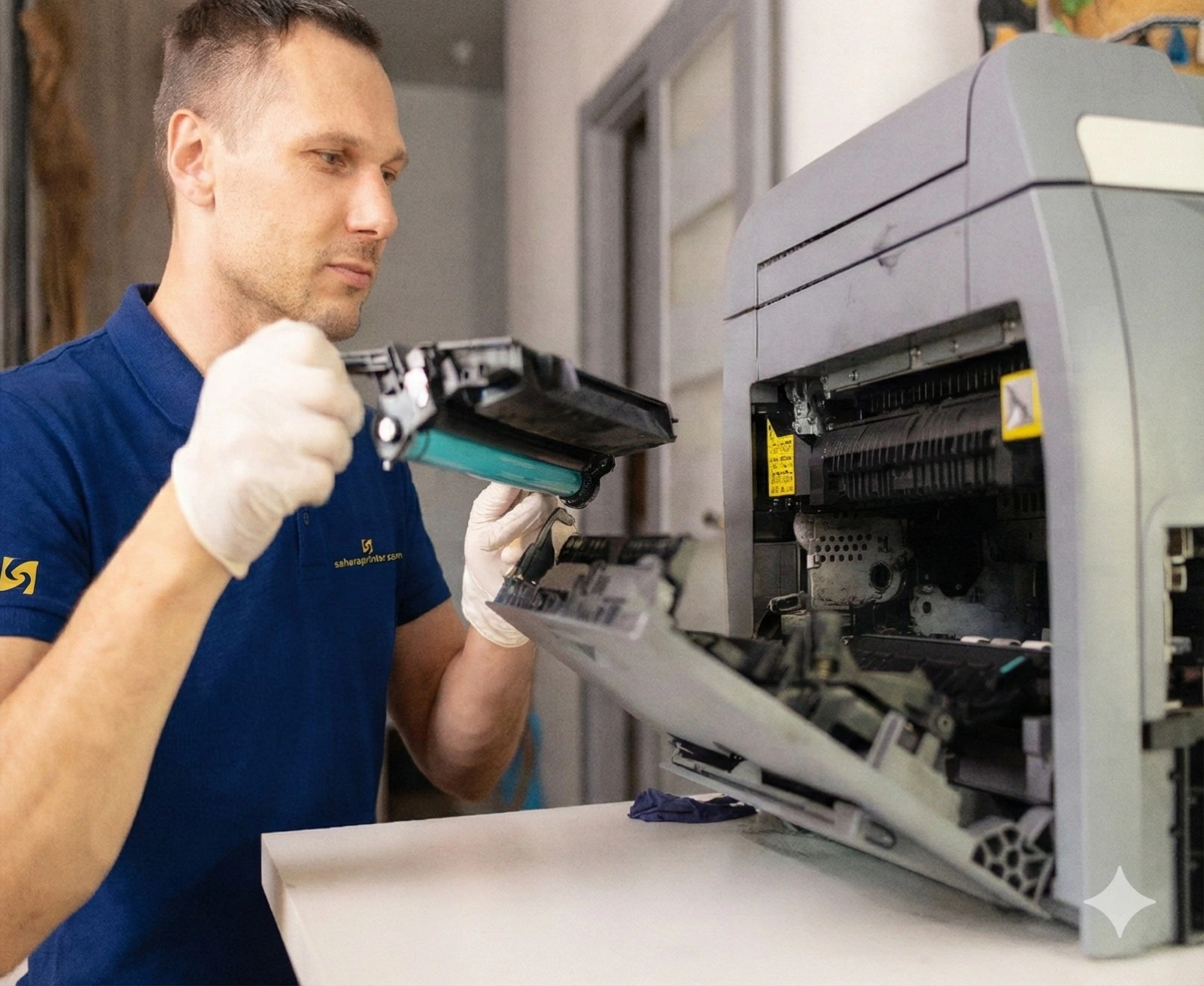
This error often appears after installing a new toner cartridge and is usually caused by the toner chip not being recognized. This is especially common with third-party compatible toner — one of many reasons why using genuine OEM toner matters.
Steps to resolve:
- Remove the toner cartridge and reseat it firmly — you should feel it click into position
- Clean the metal contact strip on the cartridge with a dry lint-free cloth
- If using compatible (non-OEM) toner, replace it with a genuine Canon cartridge — the chip profile may be incompatible
- If the error persists with OEM toner, the toner slot contacts on the machine may need cleaning by a technician
3. Offline / Not Connecting to Network
Network connectivity issues are the second-most-common Canon support call in Dubai offices, particularly after office moves or Wi-Fi password changes.
Troubleshooting steps:
- Print a network configuration report (Menu → Reports → Network Config) to confirm the printer's current IP address
- If the IP shows 0.0.0.0 or a 169.x.x.x address, the printer is not connected to the network
- For Wi-Fi: go to Wireless LAN settings and re-run the setup wizard with current Wi-Fi credentials
- For wired LAN: check the Ethernet cable and try a different port on the switch
- On the print server or computer, delete the existing printer and re-add it using the current IP address
4. Poor Print Quality (Streaks, Faded Areas, Ghost Images)
Print quality issues in Canon machines typically indicate one of three things: low toner, a worn drum unit, or dirty internal optics.
| Symptom | Likely Cause | Fix |
|---|---|---|
| Light/faded prints overall | Low toner or toner save mode enabled | Replace toner or disable toner save in settings |
| Black horizontal streaks | Dirty drum or damaged drum unit | Clean or replace drum unit |
| Vertical white lines | Dirty or damaged developer unit | Replace developer unit |
| Ghosting (faint repeat image) | Worn fuser unit | Replace fuser — technician required |
| Blotchy/patchy areas | Humidity affecting toner adhesion | Run cleaning print cycle; check room humidity |
5. Error Code E000 / E001 / E002 (Fuser Error)
These error codes indicate a fuser unit temperature problem — too hot, too cold, or a sensor failure. The fuser is the component that heat-bonds toner to paper.
What to do:
- Power cycle the machine — wait 60 seconds before restarting
- If the error persists after restart, do not continue using the machine
- Call your service provider immediately — fuser issues require a certified technician
- Attempting to clear fuser errors by clearing paper or manually resetting can cause further damage
When to Call a Technician
Some Canon printer problems should never be self-serviced:
- Any error code in the E000–E099 range (fuser and fixing errors)
- Grinding or unusual mechanical sounds
- Burning smell or visible damage to internal components
- Recurring paper jams after following all clearing steps
- Print quality issues that persist after toner and drum replacement
For businesses with a Sahara rental or AMC contract, call us immediately on +971 50 382 3969 — our printer repair team in Dubai and across the UAE responds within 4 hours. We carry the most common Canon spare parts (fuser units, drum units, developer units) on our service vehicles to minimise your downtime.
Prevent Most Problems With Scheduled Maintenance
The best Canon printer support is proactive, not reactive. Scheduled preventive maintenance — cleaning internal components, checking drum life counters, lubricating mechanical parts, and testing fuser temperature — catches 80% of potential failures before they cause downtime.
All Sahara rental contracts include scheduled preventive maintenance as standard. If you own your Canon equipment, ask us about our standalone Annual Maintenance Contract — it pays for itself the first time it prevents a major breakdown.
Canon printer problem that won't resolve? Call our technical team on +971 50 382 3969 or book a service visit.